
Eursap's SAP Tips: Secrets of the SAP GUI
Secrets of the SAP GUI.
A few little shortcuts are known to experienced consultants but not to SAP freshers. If you use the SAP GUI (and 91% of SAP users still do), then check out these tips to help shortcut your day.
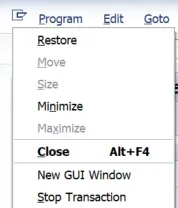
1. “Stop transaction” – if you are running a transaction like a report, and it is taking a long time, you may want to abort the transaction. Your usual options of yellow or red arrow are not available as the transaction is running. In these instances, you can click on the options icon in the top-left of the screen and select “Stop Transaction” from the list – see below. This will reset your SAP GUI session.
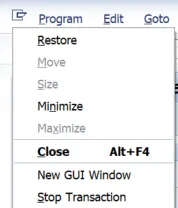
2. Create session while busy – again, if you are running a transaction that takes a long time, you may want to carry on working in another session at the same time. Your “new session” icon will not work while the cursor is busy, so how do you do this? Again, click on the options icon in the top-left of the screen, but this time select “New GUI Window” to create a new session.
3. Right click on a field. This is a little-known trick in SAP and can give you basic results, or very comprehensive options, depending upon the field you are using. Let’s take a look at two use cases.
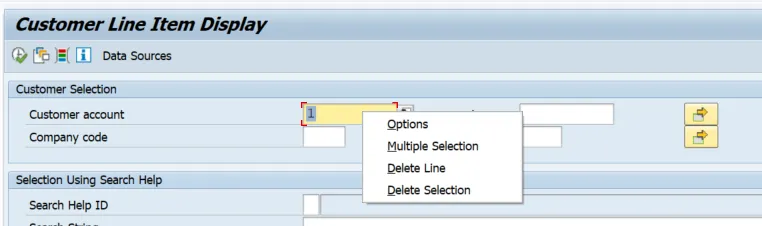
a. “Customer line item display” in finance (transaction FBL5N). Right clicking on the Customer account field in this transaction will give you limited options, as below. These options are also available by clicking on the multiple options box next to the field. So not too much in the way of help here.
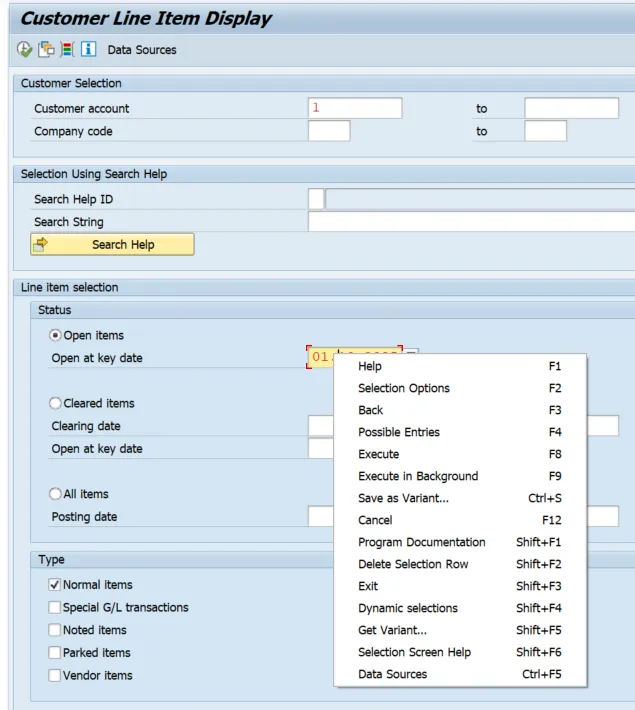
However, in a different field (“Open at key date” field) on the same screen we see a good deal of options available, as below. All SAP users will be familiar with these kinds of options, but it is very useful to see them all in a single place.
b. Display Sales Order in sales and distribution (transaction VA03). A right click on the Sold-to Party field here offers a good degree of functionality, which is only available in different areas using menu paths and alternative icons. Again – useful to see all in one place.
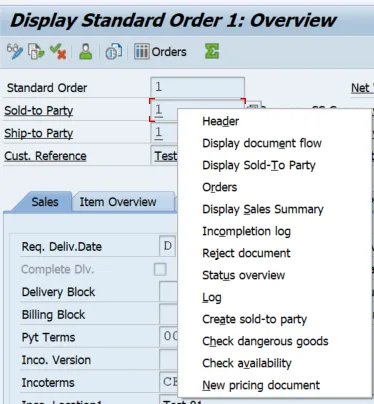
4. CTRL+right click on certain fields. This little trick is even less well known. Lots of options here – let’s explore for our two examples again.
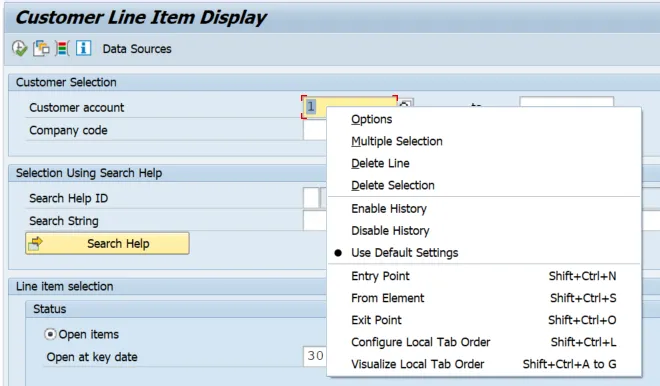
a. “Customer line item display” in finance (transaction FBL5N). CTRL+right click against the Customer account field offers some useful settings. The normal settings which are available with right click are available but we also see some additional settings here (all of which are LOCAL to your SAP workstation):
i. Enable History – controls whether SAP stores past entries for ease of retrieval
ii. Disable History – past entries are not stored
iii. Use Default Settings – overrides your custom settings here. So for example, if you set a field to Disable History, if you then click on Default Settings, the behaviour is reset.
iv. Entry Point – set the starting point in the UI for use in scripting, technical analysis and troubleshooting. This is used by basis and technical consultants.
v. From Element – similar to Entry Point, but you are asking SAP to show the navigation from this element downwards. Again, used by basis and technical consultants.
vi. Exit Point – sets the final point in the scripting or debugging.
vii. Configure Local Tab Order – as you tab through the screen, it is possible (if you have authorisation) to set where each tab selection will take you to next.
viii. Visualise Local Tab Order – this is a nice feature which shows you the current order of tab selections (see second screenshot).

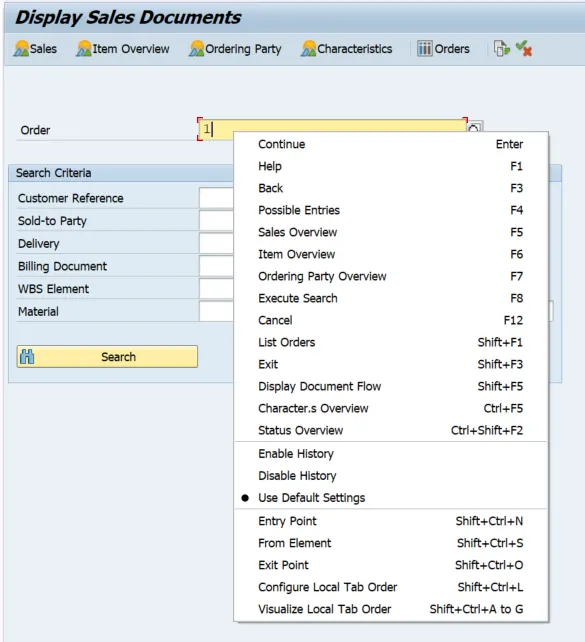
b. Display Sales Order in sales and distribution (transaction VA03). CTRL and right click here shows much the same, but there is a whole suite of additional functional entries at the top, which are very useful to see all in one place.
More Blogs


