
Eursap's SAP Tips: Customer and Vendor Hierarchies or Business Partner Hierarchies?
Eursap's SAP Tips: Customer and Vendor Hierarchies or Business Partner Hierarchies?
Traditionally in SAP systems, hierarchies for customers or vendors were maintained within their own transactions – VDH1N for customers and MKH1N for suppliers.

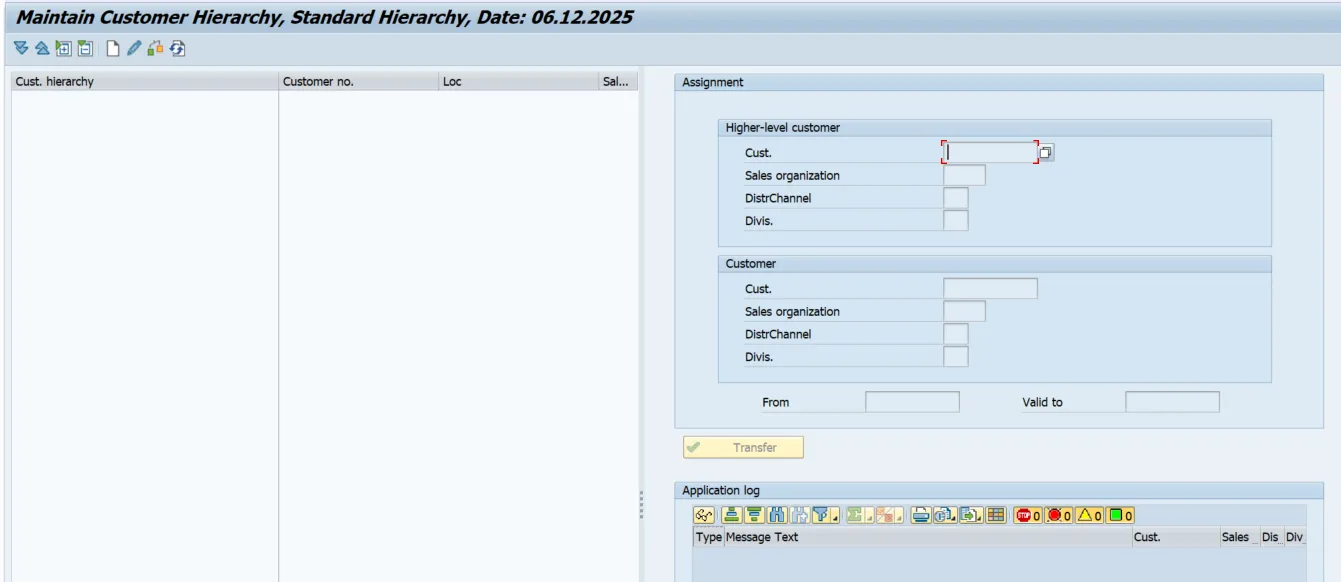
These transactions are still available in SAP S/4HANA. However, customers and suppliers are now represented as business partners. The intention behind the move to business partners is to provide an overall solution for all types of partners – be they customers, suppliers, employees, prospects, competitors, sponsors, contacts, etc. – all in one place under one object – the business partner. As a result, it is now possible to maintain hierarchical structures between business partners in the BP transaction itself, instead of relying upon separate objects such as customer hierarchy and vendor hierarchy.
This can be achieved by using the “Relationships” feature in business partners.
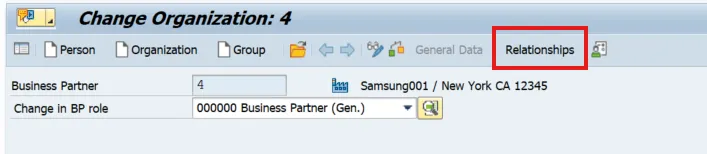
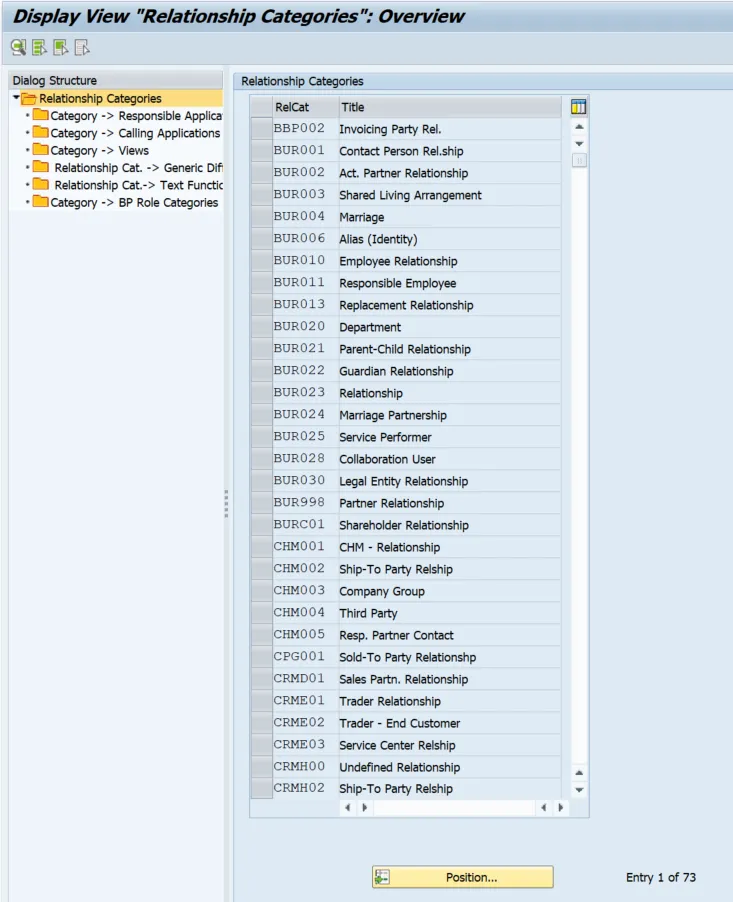
From this tab, it is possible to build up a full customer or supplier hierarchy within the business partner. Additionally, different relationship categories are supported as standard in SAP. It is also possible to create your own BP relationship categories in customizing transaction BUBA, as below:
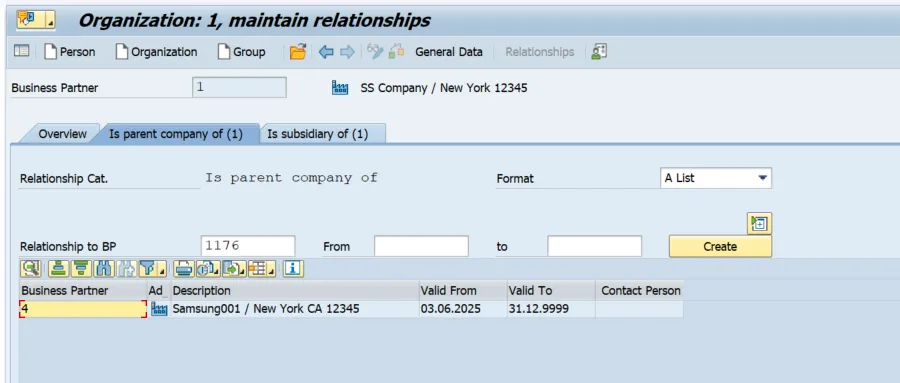
To add relationships into your business partner, in the Relationships category under transaction BP, select your desired relationship category. For example, if you want to create a parent company to subsidiary relationship, select “Is parent company of” in the relationship category and add the subsidiary BP number in the “Relationship to BP” area, as below:
Once you have established all your relationships, each different relationship can be viewed as a summary in the “Overview” section, as below. For this section to be meaningful, select “** All” in the Relationship category field, to show all relationships.
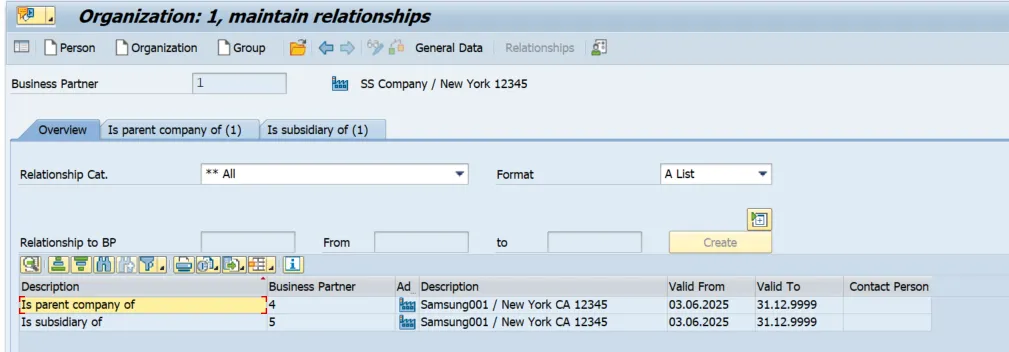
In my example above, business partner 1 is a parent company of business partner 4, but a subsidiary of business partner 5.
These relationships can be shown in their own tabs on the business partner.
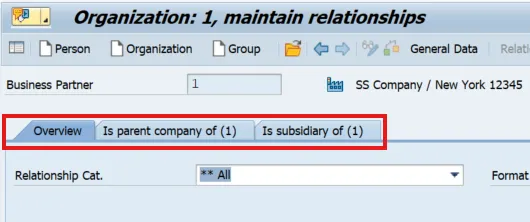
This example is a short chain of relationships, but longer chains can cause confusion. As a result, SAP has provided a different way of viewing relationships, with the structure of the relationships pre-built (i.e. “Parent company” and “subsidiary” have a relationship with each other. To illustrate this, let’s select relationship category tab “Is parent company of”:
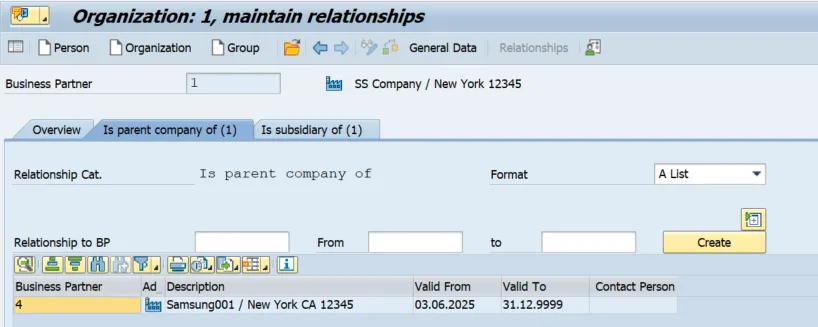
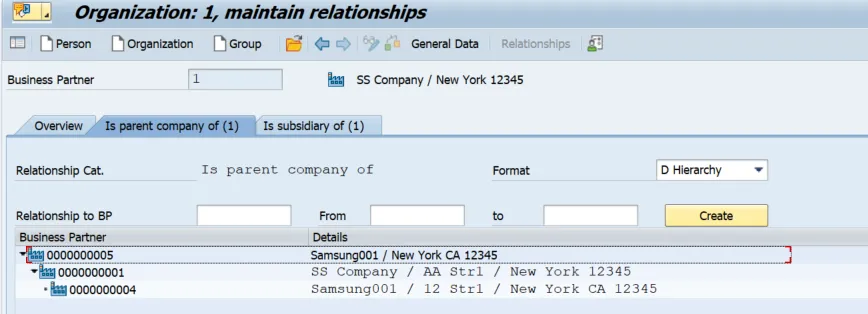
We can now see that BP 1 is a parent company of BP 4. However, we can see the full structure in a hierarchy format by changing the “Format” to “Hierarchy”
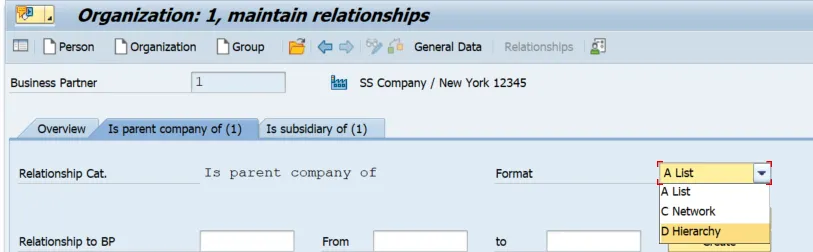
This shows a menu tree style format as below, where we have a parent company BP 5, with a subsidiary of BP1 and a next level down subsidiary of 4:
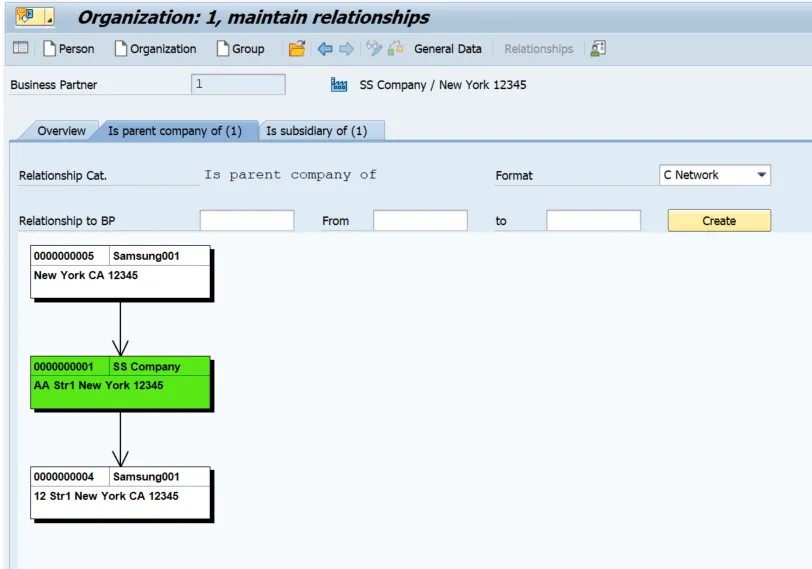
Now let’s change the Format to “Network” and we can see the full tree structure:
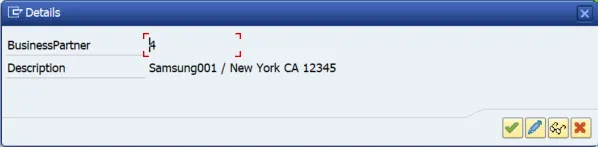
It’s possible from here to double-click on any of the entries to take you to a dialogue box from where you can navigate to display or change for those BPs.
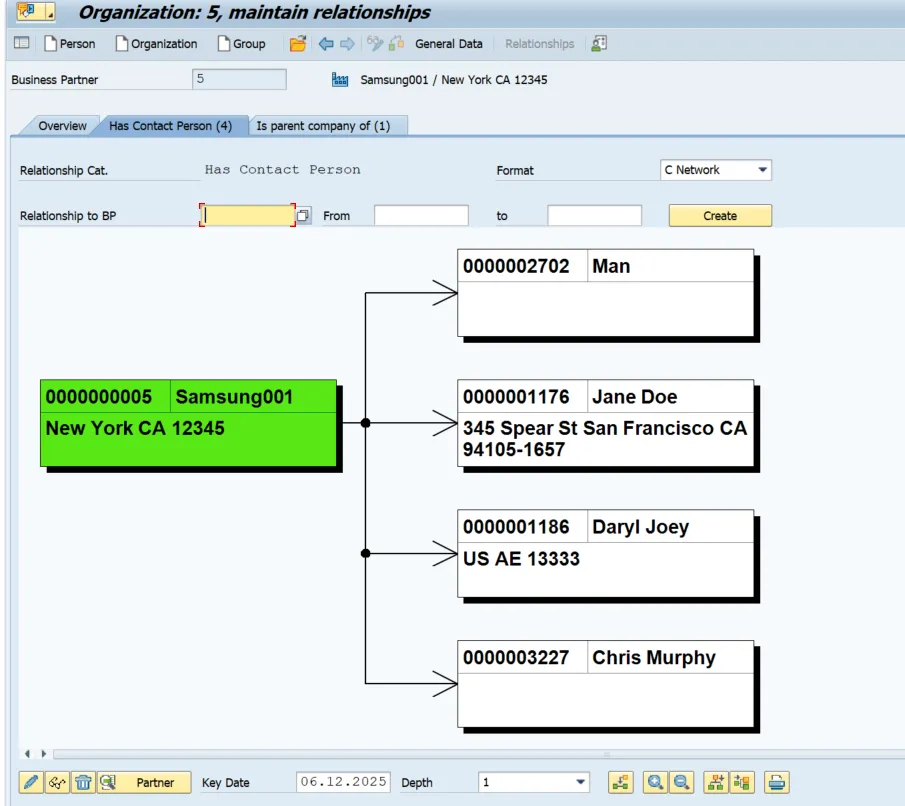
Multiple relationships can also be shown, such as below where one BP has multiple contact persons:
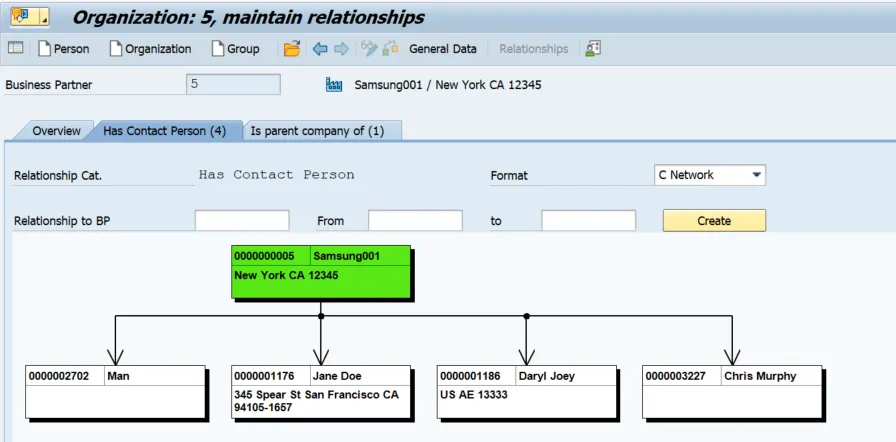
This representation is shown by default in a vertical fashion, as above, but if you click the “Horizontal” button in the icons below the visualisation, you can change the view:

Now shown as horizontal:
But wait! There’s more…
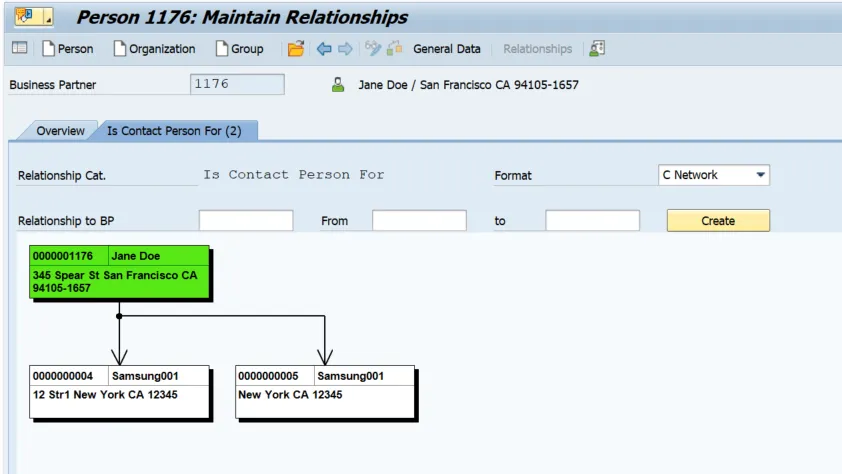
Let’s reverse this – if you create a relationship as a “Has Contact Person”, you can look at this in reverse by showing the “Is Contact Person For” relationship. For example, I have created a relationship from BP 5 to BP 1176 using the “Has Contact Person” relationship, which can be seen in the screenshot above. Now, if I go to BP 1176, and show the relationships for that BP, SAP will automatically add the relationship “Is Contact Person For”. Furthermore, if a BP has a relationship with more than one other BP, this can be displayed using the “Network” feature too. Let’s take a look at BP 1176, which is a contact person for BP 4 and 5:
What are the limitations here?
The relationships feature in the business partner is useful for full reporting purposes, as well as bringing data through to documents such as sales orders, purchase orders, deliveries and invoices.
However, a key element here is that the BP relationships cannot be used in SAP pricing. For that, you would need to use the traditional hierarchies.
More Blogs


